Telegram Bot
January 9, 2025

What is a Bot
Have you ever texted someone in Telegram? Well, a basic bot is essentially the same thing - a direct message chat where a bot can react to your requests. You open a bot, tap /start, and you can communicate with bots that can have a wide variety of functionalities. When you subscribe to a bot, it can obtain limited data about you through the Telegram API and can contact you on its own.
To communicate with the Telegram API, libraries are used, which are convenient for the programming language you've chosen for writing the bot's backend - it will be the one responding to messages sent by the bot's users and reacting to various events like menu calls, deep link navigation, and working with Mini-Apps.
A bot is a member of the Telegram community: it can be a channel administrator, can communicate with users, etc. - but it needs to be taught all of this. All requests to the server come in text format, and it's up to you to decide how to respond to them.
Events from the API arrive at the server, and you react to them. However, a bot doesn't always wait for user events - it can also initiate them. For example, you might want to notify a user about an event. If they are subscribed to the bot, you can do it; otherwise, you can't. For this, you'll need to record user data to contact them later.
To summarize what a bot is - it's simply an interface for your server that operates through the Telegram API and is accessible to all Telegram users without additional registration. An interface that allows you to automate many processes on your Telegram channels and overall work with Telegram.
Choosing Tools
A bot works through the Telegram API. You can use whatever tools you prefer for such a task. I, for example, prefer the Kotlin language, and all that's left for me is to decide: use the API directly or find a library that makes my life easier. And such a library exists for Java - telegrambots. It will suit us perfectly.
Kotlin can be used with the very popular Spring framework, but... when I tried using it with Kotlin, there were non-obvious problems that took time to solve. Ktor, which was born for working with Kotlin, suits me perfectly. It's not strictly necessary to set up a server for the bot to work, but there are tasks that require it: working with Mini-Apps, performing delayed tasks, and much more.
We need to remember users if we want to contact them, manage their channel states, and improve answer relevance. For such tasks, we need a database. The Postgres database is an excellent fit. Ktor has support for this database out of the box.
Another point to consider - the bot server should have a command-line interface (CLI). With CLI, you can automate necessary server functionality via a task scheduler (like Cron). For example, this could be data synchronization, cleaning the database of outdated tokens, or sending notifications. For organizing CLI, picocli is an excellent choice.
So, my toolset choice is:
- Language - Kotlin
- Server - Ktor
- Database - Postgres
- CLI - Picocli
Writing the Bot
Template
Let's start by creating the project template. The base for the project will be a Ktor server. You can create a Ktor project on the Ktor website in the Create section. Basic server libraries are connected by default; we'll also connect a few more libraries right away:
- Exposed - a lightweight SQL library based on the JDBC driver for the Kotlin language.
- Postgres - a powerful open-source relational database management system (RDBMS).
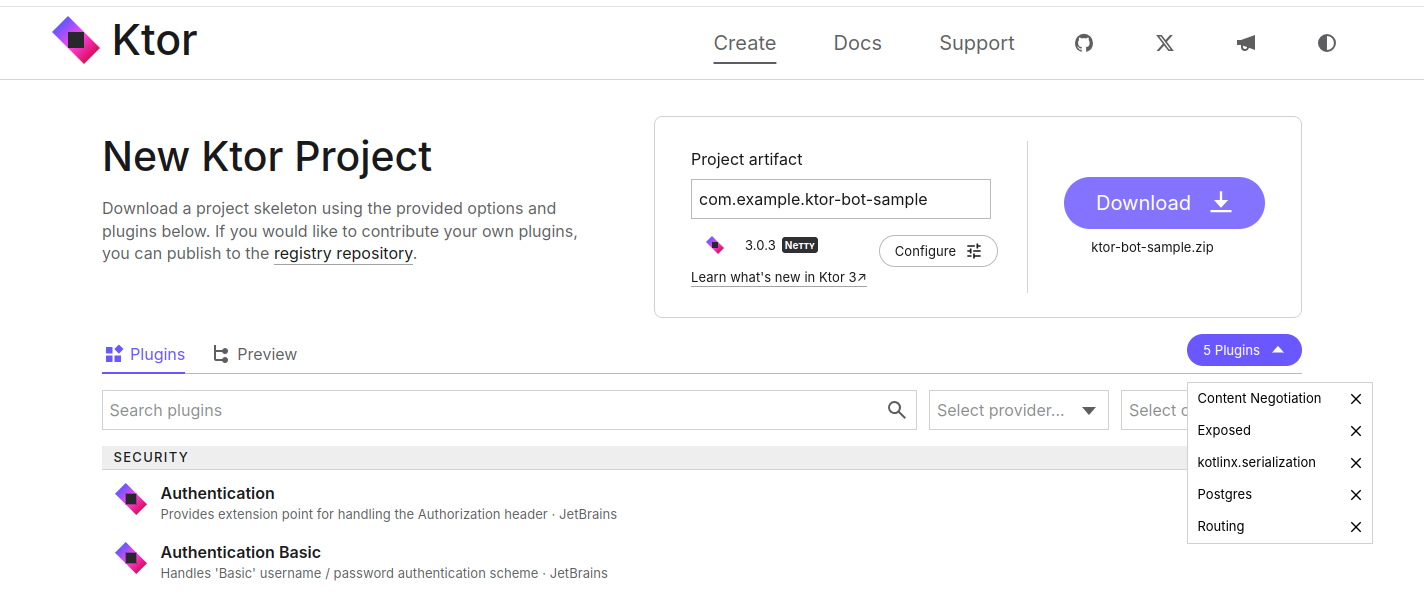
Download the resulting archive, unpack it, and open it in IntelliJ IDEA Community Edition.
JetBrains hid the Community Edition, it's tricky to find. To install this IDE, I usually use the JetBrains Toolbox App.
Postgres
At the next stage, we'll connect the database and start the server. You can install Postgres with the command (if you're on Ubuntu, for other distros and OS, it's better to google the command):
sudo apt install postgresql
You can use a client like DBeaver - it's universal. With DBeaver, you can see what's happening in the database and, if necessary, adjust data. To connect, you need to set a password for the default user postgres. To do this, execute:
sudo systemctl start postgresql.service
sudo -i -u postgres
psql
\password
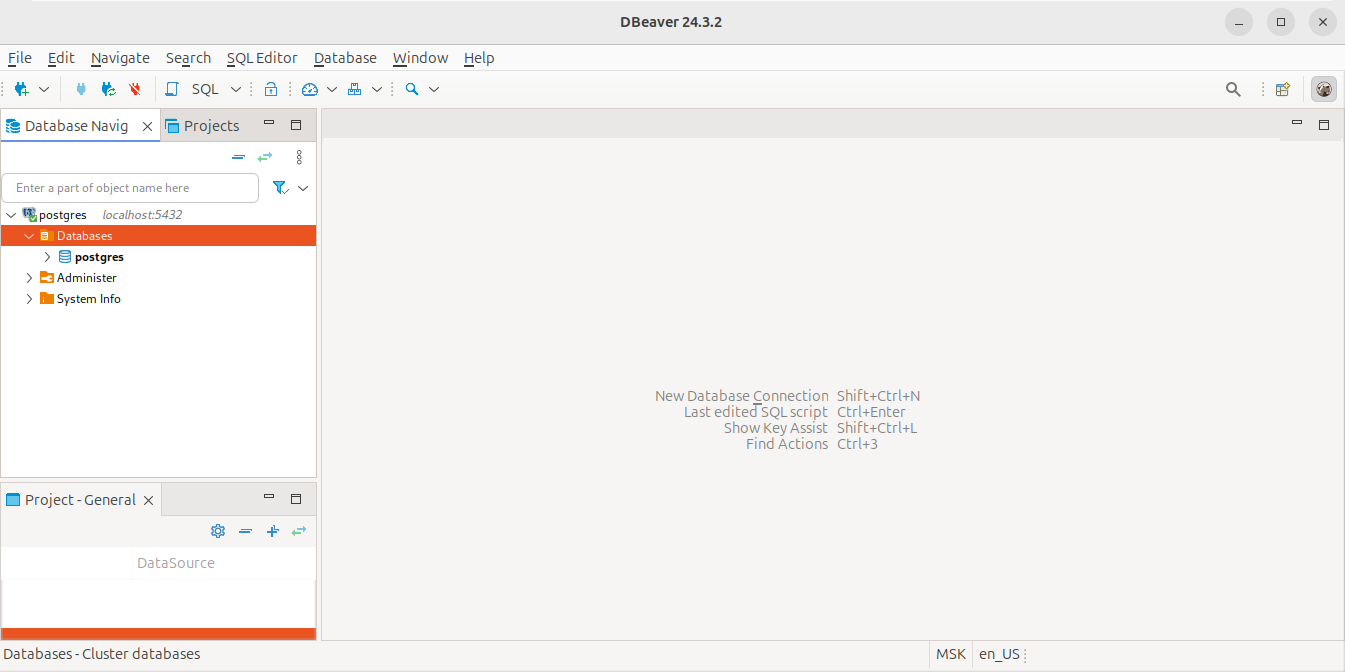
After setting the password, you can connect to the database. In DBeaver, select the Postgres database, adjust the password, and test the connection. After a successful connection, you should see the following:
Having configured the database, let's move to the server. First, we need to add migrations. Migrations are necessary for modifying the database structure. They allow you to keep the database structure in the project code. I use the Flyway library for this: let's connect it in libs.versions.toml and specify the connection in build.gradle.kts.
libs.versions.toml
[versions]
flyway-version = "11.1.0"

[libraries]
flyway-core = { module = "org.flywaydb:flyway-core", version.ref = "flyway-version" }
flyway-database-postgresql = { module = "org.flywaydb:flyway-database-postgresql", version.ref = "flyway-version" }
build.gradle.kts
dependencies {
    implementation(libs.flyway.core)
    implementation(libs.flyway.database.postgresql)
}
To send a message to a user, you need to specify their Telegram ID. If a user contacts us and we reply - the ID is known. But for the notification-on-registration feature, we need to record it. The Telegram API provides more information about the user, but for demonstration, the username and their ID will suffice. By default, Ktor/Create should have created the ExposedUser class. Let's adjust the code of the UsersSchema.kt file, proposed by the Ktor template. But first, let's add another Exposed library that simplifies working with the database: exposed-dao.
libs.versions.toml
[libraries]
exposed-dao = { module = "org.jetbrains.exposed:exposed-dao", version.ref = "exposed-version" }
build.gradle.kts
implementation(libs.exposed.dao)
As a result of the edits, ExposedUser turned out to be such a user version that we will add to migrations and use to record the user's Telegram ID:
UsersSchema.kt
// Table
object Users : IntIdTable() {
    val idTg = long("idTg").uniqueIndex()
    val name = varchar("name", length = 255)
}

// Entity
class UserEntity(id: EntityID<Int>) : IntEntity(id) {
    companion object : IntEntityClass<UserEntity>(Users)

    var idTg by Users.idTg
    var name by Users.name
}

// Service entity user table
class UserService(private val database: Database) {
    suspend fun getAll() = transaction {
        UserEntity.all().toList()
    }

    suspend fun isHash(idTg: Long) = transaction {
        UserEntity.find { (Users.idTg eq idTg) }.count() != 0L
    }

    suspend fun insert(idTg: Long, name: String) = transaction {
        UserEntity.new {
            this.idTg = idTg
            this.name = name
        }
    }

    private suspend fun <T> transaction(block: suspend () -> T): T {
        return newSuspendedTransaction(
            context = Dispatchers.IO,
            db = database
        ) { block() }
    }
}
All libraries are connected, Exposed is ready, let's prepare migrations. For this, we simply create a migration section and add a Kotlin class, inheriting from BaseJavaMigration:
class V0001__Create_Users : BaseJavaMigration() {
    override fun migrate(context: Context?) {
        transaction {
            SchemaUtils.create(Users)
        }
    }
}
Pay attention to the names; the library determines what has already been added to the database and what remains to be added based on them. Details are in the Flyway documentation.
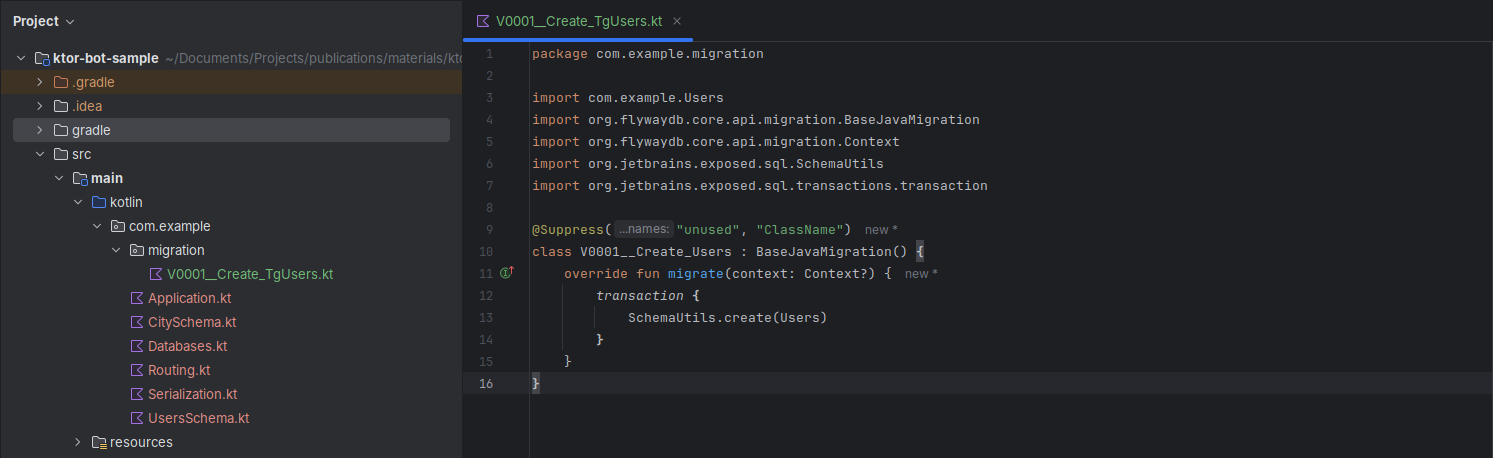
And the last thing to do is connect the Ktor server to the database. In the Ktor project, the entry point is Application.module(); here you can find all connections and startup settings. Let's go to the configureDatabases method and configure it for ourselves:
Databases.kt
fun Application.configureDatabases() {
    // Get data from config
    val url = environment.config.property("postgres.url").getString()
    val user = environment.config.property("postgres.user").getString()
    val password = environment.config.property("postgres.password").getString()
    // Connect to db with migrations
    val database = Database.connectWithFlyway(
        url = url,
        user = user,
        password = password,
        migration = "com/example/migration"
    ) ?: throw RuntimeException("Error connect to DB!")
    // Init service user
    val userService = UserService(database)
}

private fun Database.Companion.connectWithFlyway(
    url: String,
    user: String,
    password: String,
    migration: String
): Database? {
    return try {
        val database = connect(
            url = url,
            user = user,
            password = password,
        )
        val flyway = Flyway.configure()
            .locations(migration)
            .dataSource(url, user, password)
            .load()
        flyway.info()
        flyway.migrate()
        database
    } catch (e: Exception) {
        null
    }
}
Access to the database should not be in the project code; for this, there is a configuration file - application.yaml, and you can get data from it as shown above. The configuration file is not stored in the project repository but is only available on the local machine. Usually, a demo file is added; it can be named, for example, _application.yaml, to simplify server setup. Currently, it looks like this, the access details were updated for connecting to Postgres:
application.yaml
ktor:
  development: true
  application:
    modules:
      - com.example.ApplicationKt.module
  deployment:
    port: 8080
postgres:
  url: "jdbc:postgresql://localhost:5432/postgres"
  user: postgres
  password: 12345678
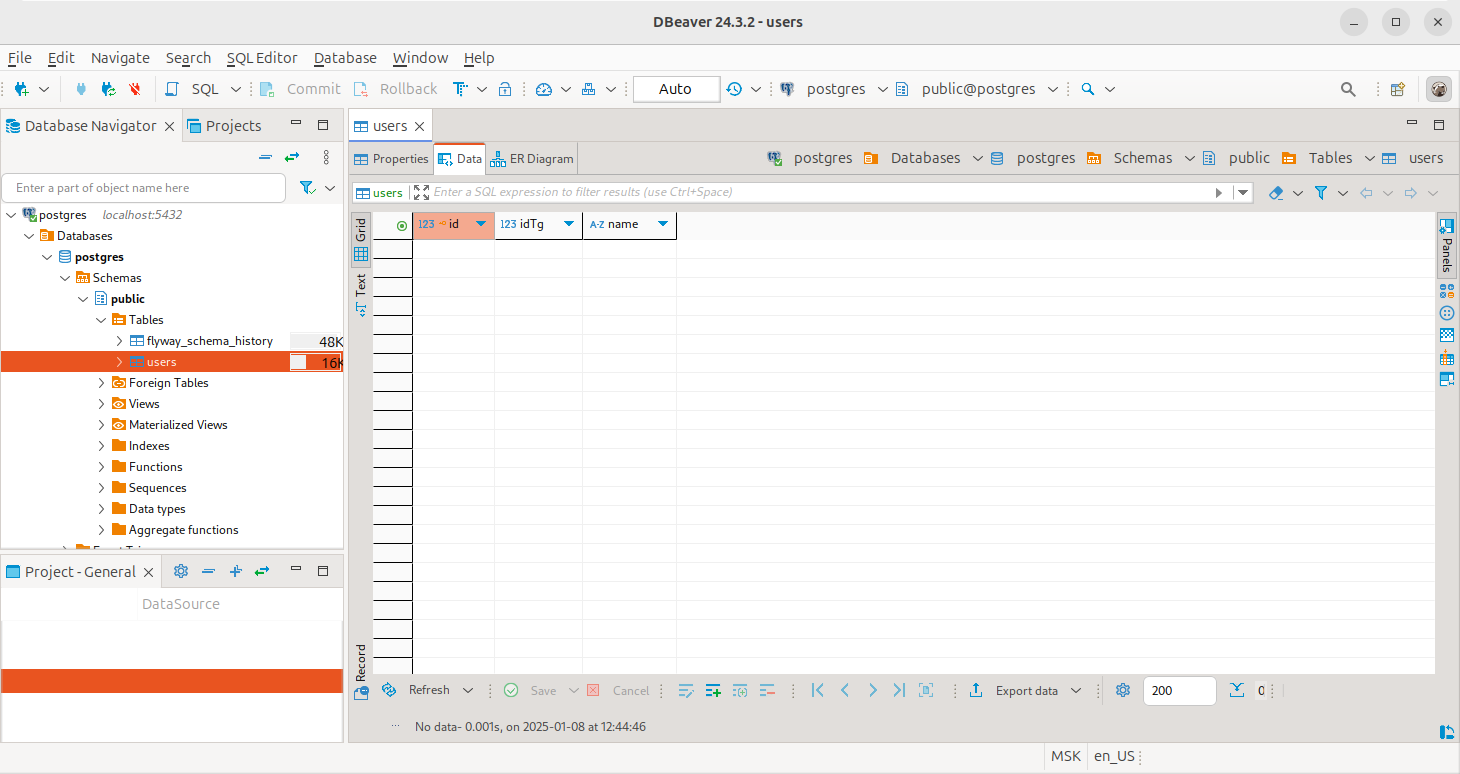
Everything is set up to start the server; now you can find the main function in the IDE and press the green arrow or execute the command ./gradlew runFatJar in the terminal. After startup, in the console logs, you will find a link to the running server, and in DBeaver, you can find the users table:
For accessing UserService, it's convenient to use DI. For the server, I usually use Koin. Let's connect it and add UserService to get the service when accessing the API, which we will add for notifications.
libs.versions.toml
[versions]
koin-version = "4.0.1"

[libraries]
koin-core = { module = "io.insert-koin:koin-core", version.ref = "koin-version" }
build.gradle.kts
dependencies {
    implementation(libs.koin.core)
}
Now we can add the UserService service to DI:
Databases.kt
import org.koin.core.context.GlobalContext.loadKoinModules
import org.koin.dsl.module as moduleKoin

fun Application.configureDatabases() {
	//...
	// Add services DB to DI
	loadKoinModules(moduleKoin {
	    single { UserService(database) }
	})
}
And in the Application.kt file, initialize Koin.
Separating Koin initialization will be convenient when expanding CLI functionality in the future; for now, I just showed how it can be done for the future.
Application.kt
fun Application.module() {
    val isDevelopment = environment.config.property("ktor.development")
        .getString().toBoolean()
    startKoin {
        printLogger(if (isDevelopment) Level.DEBUG else Level.NONE)
    }
    //...
}
Having connected DI, we can get an instance of the service like this:
val userService: UserService by inject(UserService::class.java)
Ktor API
Let's add the first API method; after calling it, we will retrieve all users registered in the Telegram bot and output their IDs to the log. Later, we will connect message sending to it. For this, we already have the configureRouting method in the project.
But let's not forget about the main API page; I always add a nice page explaining to users where they have ended up. Ktor can output HTML, but for this, you need to add the html-builder library and the kotlinx.html library, which allow forming HTML in a Kotlin-friendly format - DSL:
libs.versions.toml
[versions]
kotlinx-html-version = "0.11.0"

[libraries]
kotlinx-html = { module = "org.jetbrains.kotlinx:kotlinx-html", version.ref = "kotlinx-html-version" }
ktor-server-html-builder = { module = "io.ktor:ktor-server-html-builder", version.ref = "koin-version" }
build.gradle.kts
dependencies {
    implementation(libs.kotlinx.html)
    implementation(libs.ktor.server.html.builder)
}
I recommend starting API methods with the prefix /api - this allows easy proxying of the API to websites, as well as leaving the root for the site. The routing page takes the following form:
fun Application.configureRouting() {
    routing {
        main()
        route("/api") {
            notification()
        }
    }
}

private fun Route.main() {
    get("/") {
        call.respondHtml {
            style = "width: 100%; height: 100%; background: black;"
            body {
                style = "width: 100%; height: 100%; margin: 0;"
                table {
                    style = "width: 100%; height: 100%;"
                    tr {
                        td {
                            h1 {
                                style = "color: white; text-align: center;"
                                +"REST API for Telegram Bot!"
                            }
                        }
                    }
                }
            }
        }
    }
}

private fun Route.notification() {
    get("/notification") {
        // service
        val userService: UserService by inject(UserService::class.java)
        // act
        runBlocking {
            userService.getAll().forEach {
                println(it.idTg)
            }
        }
        // response
        call.response.status(
            HttpStatusCode(
                HttpStatusCode.OK.value,
                "Notification completed successfully!"
            )
        )
    }
}
After launching the server with the changes, on the main page http://0.0.0.0:8080/, you will find a page in HTML format. It's not the prettiest page, but it's a start:
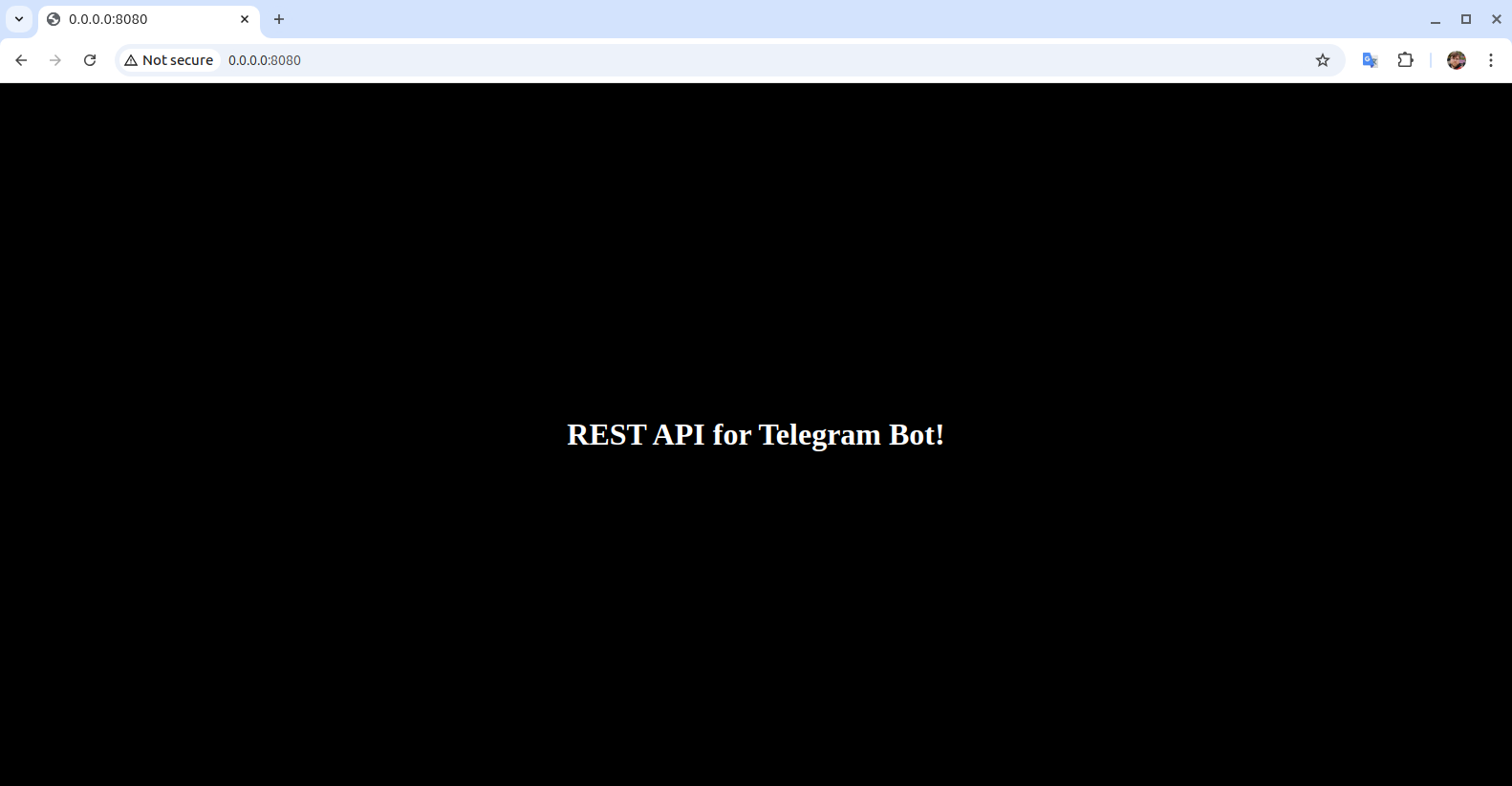
And via the link http://0.0.0.0:8080/api/notification, we can execute the retrieval of the list of users and their Telegram IDs. We don't have any yet. For users to appear in our list, they must execute the /start command in the bot - this is always the first command upon entering a bot.
Bot Registration
Now we can connect the bot. We have a place to register users: we have a configuration file where we can save secure data like the bot token. Let's register it. For this, go to the Telegram bot - @BotFather. I would advise registering two bots right away - one public, accessible to everyone, and the second for testing and access by beta users.
An important nuance to know - a bot server can only be started once. That is, if you want to send notifications from the CLI with the bot already running, you won't be able to - the bot instance is already running, and here our Ktor server will come in very handy. Through it, we can access the already running bot via API.
Start the process of creating a new bot /newbot:
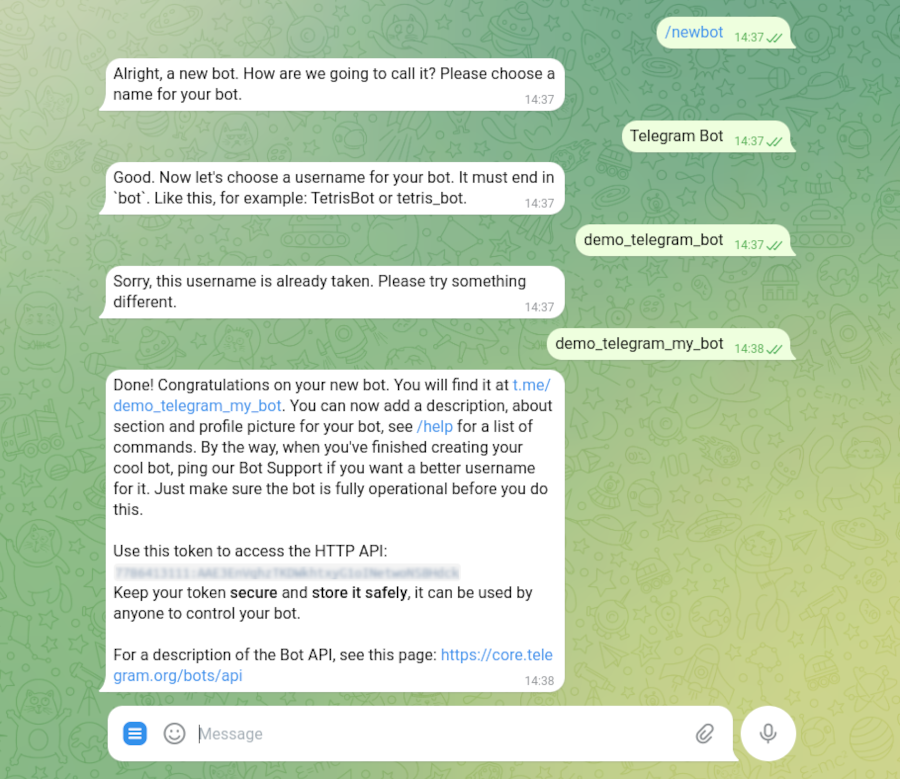
The bot will be available via the link https://t.me/demo_telegram_my_bot, in my case.
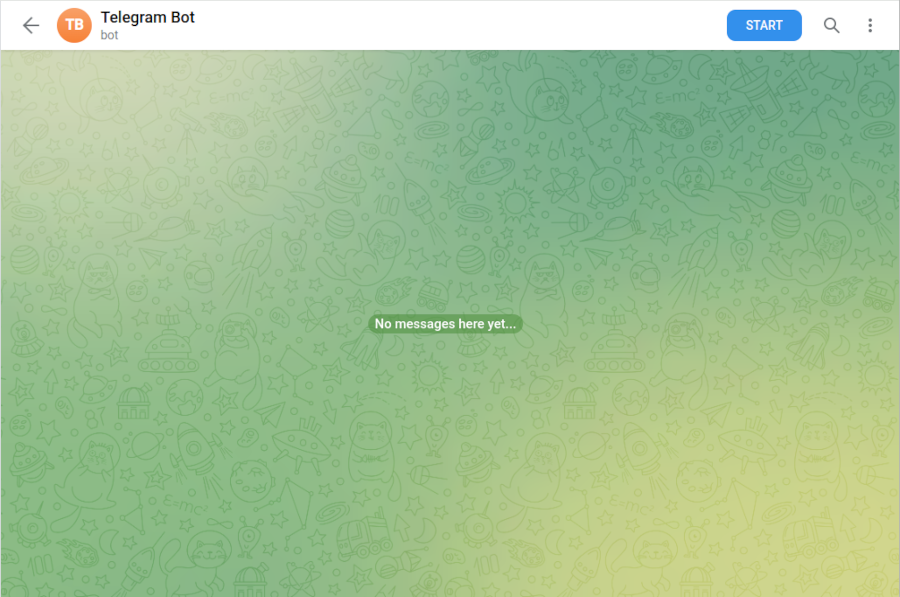
Through @BotFather, we can configure the bot menu - a button in the bot interface with commands. A command in a bot is not much different from a regular message - it's just text arriving in the event method. On the server, the programmer decides how to react to this command, just like all other messages addressed to the bot. Let's add the /about command to output information about our bot. To do this, execute the @BotFather command /mybots:
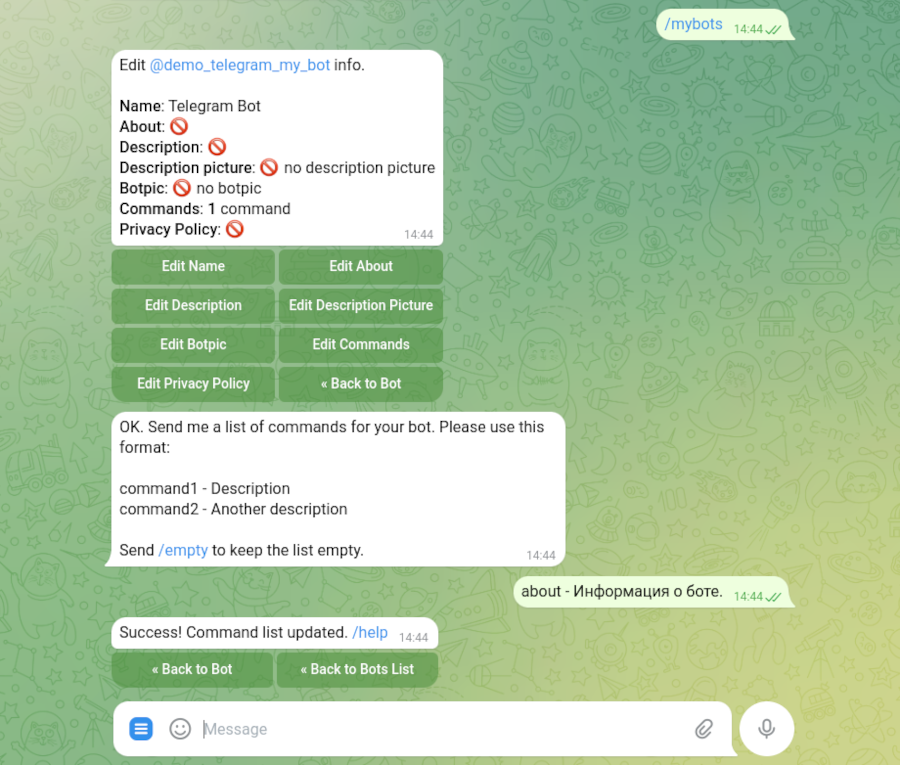
Now we have the bot token, through which we can connect to the Telegram API. Let's add the token to the configuration file and the library to the project:
application.yaml
telegram:
  token: "9082348972:SDFwewe234dsfDsdf5dff6345fdgFdfddsS"
libs.versions.toml
[versions]
telegrambots-version = "6.9.7.1"

[libraries]
telegrambots = { module = "org.telegram:telegrambots", version.ref = "telegrambots-version" }
build.gradle.kts
dependencies {
    implementation(libs.telegrambots)
}
Initialize the bot in the project. Let's create a class and inherit it from TelegramLongPollingBot:
AppBot.kt
class AppBot(token: String) : TelegramLongPollingBot(token) {
    override fun getBotUsername(): String {
        return "Telegram Bot"
    }

    override fun onUpdateReceived(update: Update) {
        // All bot messages will be sent here.
    }

    fun sendMessage(idTg: Long, text: String) {
        execute(
            SendMessage.builder()
                .chatId(idTg.toString())
                .parseMode("html")
                .text(text)
                .build()
        )
    }
}
Application.kt
fun Application.module() {
    // get from config params
    val isDevelopment = environment.config.property("ktor.development")
        .getString().toBoolean()
    val botToken = environment.config.property("telegram.token")
        .getString()
    // Init Telegram Bot
    val bot = AppBot(botToken).apply {
        TelegramBotsApi(DefaultBotSession::class.java).registerBot(this)
    }
    // Start Koin
    startKoin {
        printLogger(if (isDevelopment) Level.DEBUG else Level.NONE)
		modules(module {
		    single { bot }
		})
    }
    // Init DB
    configureDatabases()
    // Init Routing
    configureRouting()
}
We put the bot in Koin - we need to send notifications when the API notification is called. Let's update the notification API method:
Routing.kt
private fun Route.notification() {
    get("/notification") {
        // service
        val userService: UserService by inject(UserService::class.java)
        val appBot: AppBot by inject(AppBot::class.java)
        // act
        runBlocking {
            userService.getAll().forEach {
                try {
                    appBot.sendMessage(it.idTg, "Notification!")
                } catch (ex: Exception) {
                    println("Failed to send message to this user: ${it.idTg}")
                }
            }
        }
        // response
        call.response.status(
            HttpStatusCode(
                HttpStatusCode.OK.value,
                "Notification completed successfully!"
            )
        )
    }
}
This method does:
- Retrieves users from the database.
- Sends a notification message to the user in the chat.
- Handles errors - the user may have left the bot.
- Returns a 200 status upon successful method execution.
It remains to add user recording upon the first /start message and greet them:
AppBot.kt
//...
override fun onUpdateReceived(update: Update) {
    // Get data
    val message = update.message.text
    val user = update.message.from
    // Start message
    if (message == "/start") {
        runBlocking {
            if (userService.isHash(user.id)) {
                sendMessage(user.id, "You are already registered.")
            } else {
                userService.insert(
                    idTg = update.message.from.id,
                    name = update.message.from.firstName,
                )
                sendMessage(user.id, "Welcome!")
            }
        }
    }
}
//...
After restarting the server, you can register by executing the /start command.
In the beta bot, you can use Telegram ID to restrict user access to it.
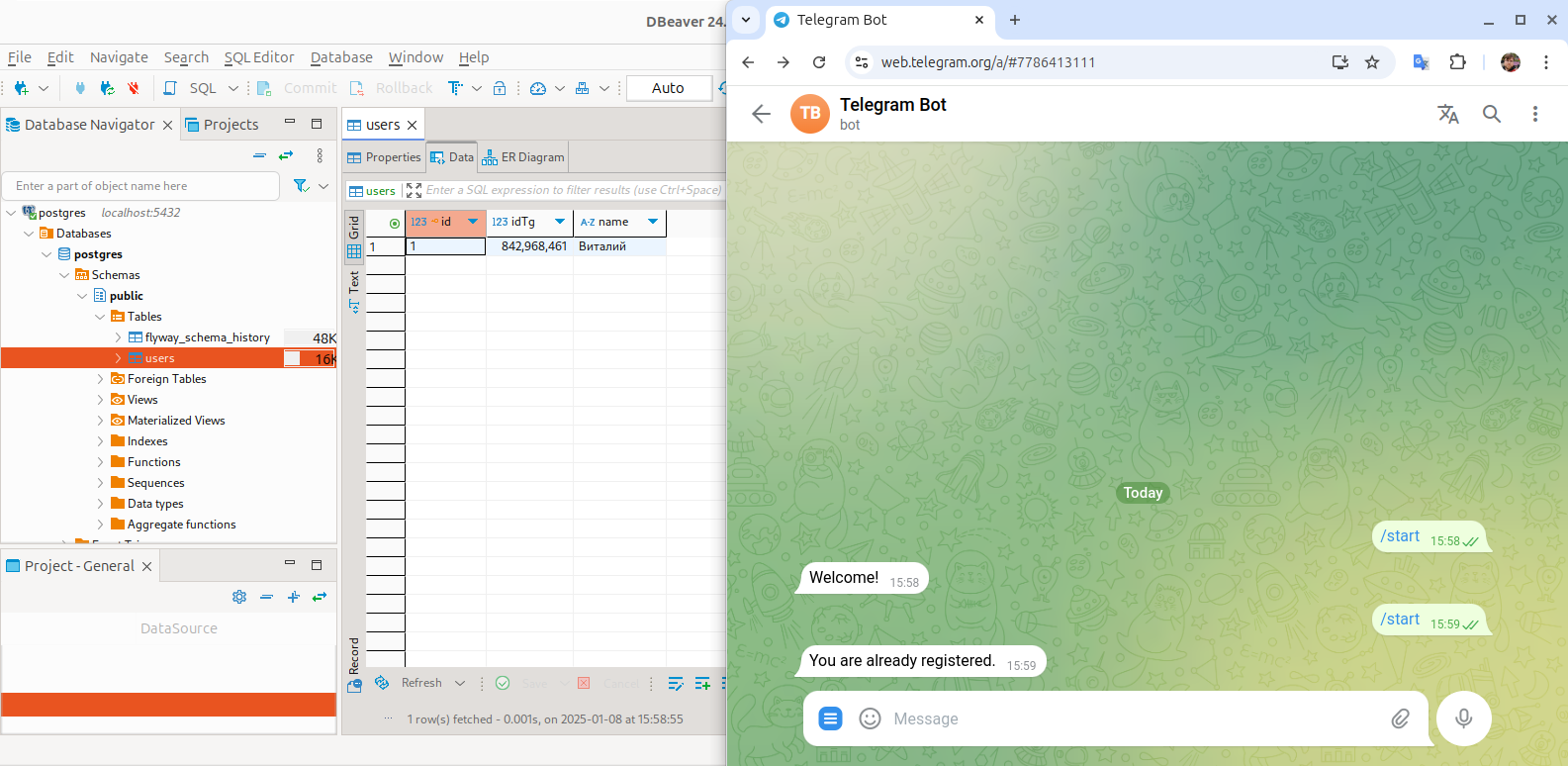
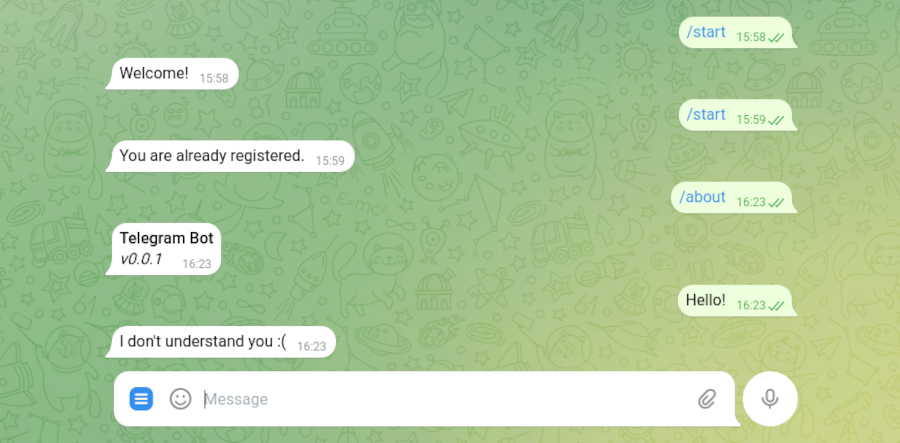
Telegram has two possible message formats - html and markdown. You can familiarize yourself with them in detail on the Telegram documentation page - Formatting options. I recommend using HTML - if you make a small mistake in the message, it simply won't send. Making a mistake in markdown is much easier than in HTML. Let's also add a reaction to the /about menu item and handling of unknown commands and requests.
AppBot.kt
//...
override fun onUpdateReceived(update: Update) {
    // Get data
    val message = update.message.text
    val user = update.message.from
    // Start message
    if (message == "/start") {
        runBlocking {
            if (userService.isHash(user.id)) {
                sendMessage(user.id, "You are already registered.")
            } else {
                userService.insert(
                    idTg = update.message.from.id,
                    name = update.message.from.firstName,
                )
                sendMessage(user.id, "Welcome!")
            }
        }
        return
    }
    if (message == "/about") {
        sendMessage(
            user.id,
            createHTML().div {
                b { +"Telegram Bot\n" }
                i { +"v0.0.1" }
            }.substringAfter("<div>").substringBefore("</div>")
        )
        return
    }
    sendMessage(user.id, "I don't understand you :(")
}
//...
Note that even in HTML format, new lines are interpreted as line breaks.
Command-line interface
Another task we were heading towards - notifying users without a user request. For example, we want to share some news. Our bot is already running on the server, and a bot can only have one running instance. To reach the active bot, we created the notification API method - it has access to the active bot, the database - everything needed. But how will we call this method? Of course, you can simply call it directly in any way, but it's better to make a CLI method that will perform this task. There's no need to delve into the nuances of server operation every time you need to add another method.
In this article, I won't touch on setting up authorization for accessing API methods. This functionality can be implemented via Ktor's features - making it impossible to call API methods without authorization. Let me say this: we have a single codebase - configuration files are on the server. This can be done very simply. You can find documentation on authorization and authentication here.
Let's add a command line to the project. When we build the jar, we need it to be able to start the server and execute necessary commands. For this, we'll add the picocli library and adjust the main function so that we can either start the server or execute a command:
libs.versions.toml
[versions]
picocli-version = "4.7.6"

[libraries]
picocli = { module = "info.picocli:picocli", version.ref = "picocli-version" }
build.gradle.kts
//...
application {
    mainClass.set("com.example.ApplicationKt")
    val isDevelopment: Boolean = project.ext.has("development")
    applicationDefaultJvmArgs = listOf("-Dio.ktor.development=$isDevelopment")
}

ktor {
    fatJar {
        archiveFileName.set("telegram-bot.jar")
    }
}
//...
dependencies {
    implementation(libs.picocli)
}
//...
Application.kt
@CommandLine.Command(
    name = "telegram-bot",
    version = ["0.0.1"],
    mixinStandardHelpOptions = true,
    sortOptions = false,
)
class AppCLI(private val args: Array<String>) : Callable<Int> {
    @CommandLine.Option(
        names = ["--notification"],
        description = ["Execute the mailing."]
    )
    var notification: Boolean = false

    override fun call(): Int {
        try {
            if (notification) {
                val result = Runtime.getRuntime().exec(
                    listOf("curl", "-X", "GET", "http://0.0.0.0:8080/api/notification")
                        .toTypedArray()
                )
                return result.exitValue()
            } else {
                io.ktor.server.netty.EngineMain.main(args)
            }
        } catch (ex: Exception) {
            return 1
        }
        return 0
    }
}

fun main(args: Array<String>) {
    CommandLine(AppCLI(args)).execute(*args)
}
///...
Here, I used a simple curl call to demonstrate the work. In general, it's better to add Ktor client to the project and execute necessary API methods through it, and adding authorization wouldn't hurt either, if you plan to open API access. But in this case, our API only looks at localhost, so it's not critical.
Let's build the jar file, start the server, and try to execute the notification.
./gradlew buildFatJar
In the project root, call this command and find the build in the directory:
<project>/build/libs/ktor-bot-sample-all.jar
Now we can see what we got by executing jar with the --help parameter:
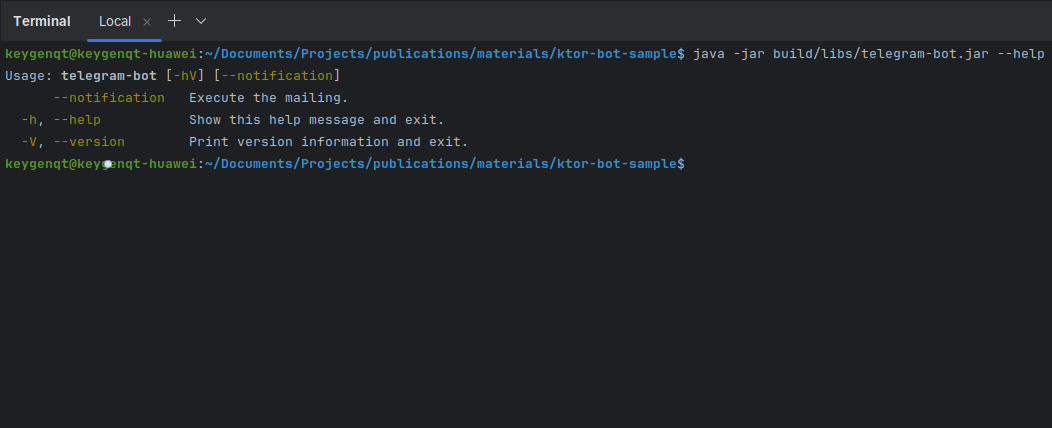
To start the server, we execute the jar without parameters. To call the notification command, we need to specify it:
Starting the server:
java -jar build/libs/telegram-bot.jar
Executing the mailing:
java -jar build/libs/telegram-bot.jar --notification
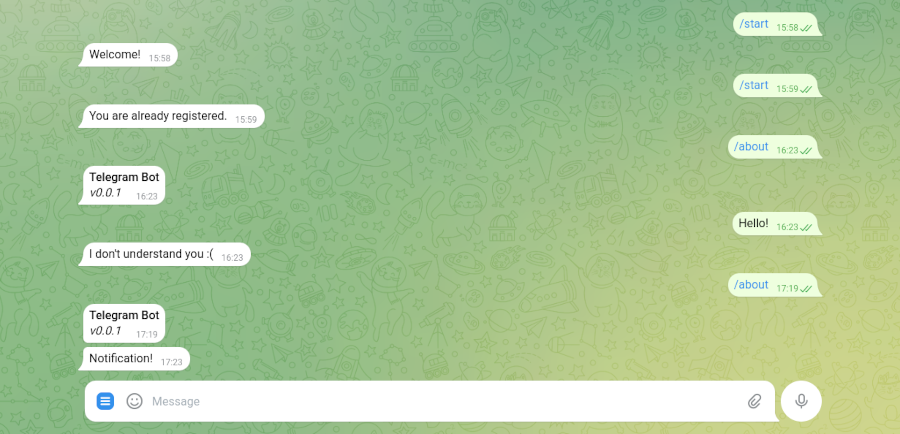
Well, that's it, the main bot functionality is ready. It can be expanded and improved for all occasions. I can't describe everything in one article, but we have a good foundation. You can find the project code on GitHub. If there are questions, I'm ready to answer on Boosty. There is another feature not covered in this article - Mini-App.
Mini App
The Mini-App application is simply a web application, essentially a website hosted on your server, which connects to a specific bot via a link and launches from a button in the Telegram interface. The logic is as follows - take React (for example), set up a site on the server, proxy our API into the application, connect this service to the bot via @BotFather. You get access to this application in the bot interface right in Telegram on all platforms, which can be used by any person who has passed the /start button of your bot, and through the API - access to all bot functionality.
Conclusion
In this article, I described how to create and organize the main bot features. The bot itself is simple, but the surrounding infrastructure is not. Of course, everything depends on the task - approaches can change. But we prepared for all occasions - any possible cases available in the bot are available to us: we know the users, can manage the chat with the user. We can answer the user's questions and contact the user independently. And we also have the best tools that are easy to work with and expand functionality.
Next, you can package the server in Docker, connect AI and relevant search to responses. You can add Mini-App separately or on the main page of the already running server, if desired. You can also use serialization in API responses, add authentication. It's impossible to describe all the nuances in one article, but we have a good start.
A bot is a convenient interface without SMS and registration. The main job of a bot is to be on the server. How smart it will be depends on the developer and the tasks before them. You will work with text requests - messages, an interesting task, unlike writing GUI & CLI applications.
The described demo example is available on GitCode: web-ktor-bot-sample.