Rust for Aurora OS
November 25, 2025
Hi! I'm a lead software engineer at Открытая мобильная платформа (ОМП), a company developing the Aurora operating system and much more. Recently, I created a project demonstrating how to build and run a Rust application on Windows, Linux, and macOS for the Aurora OS.
Currently, Aurora OS is a mobile operating system. However, there are already prototypes allowing Aurora OS to be used as a desktop or automotive operating system. Aurora OS is based on the Linux kernel. Its ancestor was Sailfish OS, but the systems have long since diverged. This is a general overview; you can start learning more about the operating system at https://auroraos.ru.
There is no official Rust support in Aurora OS. The PSDK (a set of tools for developing, debugging, and testing Aurora OS components, available for installation only on Linux) contains an outdated version (1.6) unsuitable for writing applications. I implemented the demo project Rust for Aurora OS, which shows how to get everything needed for writing an application:
- The latest version of Rust.
- Access to the system's main interfaces.
- Nuances of building the application and the RPM package.
- Cross-compilation on Windows, Linux, macOS.
Creating a Project
The Rust language can be installed on Windows, Linux, macOS. The installation includes the Cargo build system, which can be used to create a project:
cargo new aurora-rs --bin
The project is immediately ready for building. Navigate to the created aurora-rs directory and run:
cargo run --
You should see the text Hello, world!. This is our starting point.
Building the Application
Aurora OS supports three architectures: armv7hl, aarch64, x86_64. Rust has convenient cross-compilation, but setting up the environment on Windows and macOS to build an application for Linux (which is the basis of Aurora OS) is already a non-trivial task. We want to work freely on all major OSes: Windows, Linux, macOS. The Cross project can solve this task – you won't need to configure the system for building; just have Docker installed.
But we need Docker not only for building – it will also be needed to install the Aurora SDK. Currently, macOS support with Apple silicon (aarch64) processors is only available in the beta version of Aurora SDK, the latest available now is 5.2.75, so we will work with the beta. Perhaps by the time you read this, version 5.2 will already be stable, making things easier for you. Currently, the version is being refined, and minor bugs are possible. But if you are an experienced developer, no problems should arise.
You need to install the Build Tools version (BT) – this is the version with building in a Docker container. But, as I said, the Rust version there is outdated and won't suit us. We will use the upstream version; my current one is 1.9. What we need in Docker is the libraries for accessing system interfaces. There we have a set of various C, C++, Qt, D-Bus interfaces. We'll analyze that later; for now, let's focus on the build.
Install Cross with the command:
cargo install cross --git https://github.com/cross-rs/cross
After installation, we can replace cargo build commands with cross – a container will automatically launch and the build will proceed inside it. For example, we want to build the project for x86_64. To do this, run:
cross build --target="x86_64-unknown-linux-gnu"
After a successful build, you will find the built application in the target/x86_64-unknown-linux-gnu/debug directory. But we have three architectures (armv7hl, aarch64, x86_64). For armv7hl and aarch64 architectures, we need to specify the linker. This can be done in config.toml, located in the .cargo directory (if it doesn't exist, create it).
<project>/.cargo/config.toml
# armv7hl
[target.armv7-unknown-linux-gnueabihf]
linker = "arm-linux-gnueabihf-gcc"
rustflags = [
    "-C", "link-arg=-Wl,--as-needed",
]

# aarch64
[target.aarch64-unknown-linux-gnu]
linker = "aarch64-linux-gnu-gcc"
rustflags = [
    "-C", "link-arg=-Wl,--as-needed",
]

# x86_64
[target.x86_64-unknown-linux-gnu]
rustflags = [
    "-C", "link-arg=-Wl,--as-needed",
]
Here we can also specify general compilation flags via rustflags. The --as-needed flag tells the linker to include only those symbols (functions, variables, etc.) from the specified libraries that are actually used in the program – we don't need extra stuff, as Aurora OS has a strict validator that will not allow installing an application if it has unprocessed dependencies.
Another important nuance is the glibc version. In Aurora OS 5.2, glibc version 2.38 is desirable for full compatibility, but I compromised: simplicity/compliance. Ubuntu 24.04 uses glibc version 2.39. It is maximally close to Aurora OS, and a built application that does not use functionality from 2.39 will work on 2.38. To configure Cross to use Ubuntu, we can specify settings for build targets in Cargo.toml:
# armv7hl
[workspace.metadata.cross.target.armv7-unknown-linux-gnueabihf]
image = "ubuntu:24.04"
pre-build = ["apt-get update && apt-get -y install curl build-essential clang pkg-config g++-arm-linux-gnueabihf"]

# aarch64
[workspace.metadata.cross.target.aarch64-unknown-linux-gnu]
image = "ubuntu:24.04"
pre-build = ["apt-get update && apt-get -y install curl build-essential clang pkg-config g++-aarch64-linux-gnu"]

# x86_64
[workspace.metadata.cross.target.x86_64-unknown-linux-gnu]
image = "ubuntu:24.04"
pre-build = ["apt-get update && apt-get -y install curl build-essential clang pkg-config"]
Here, for each build target, we specify the image – the Docker image – and install everything needed for cross-compilation. Now, by running the build command, Cross will pull the image we need and build the application for our target architecture:
# armv7hl
cross build --target="armv7-unknown-linux-gnueabihf"
# aarch64
cross build --target="aarch64-unknown-linux-gnu"
# x86_64
cross build --target="x86_64-unknown-linux-gnu"
Aurora CLI
The Aurora CLI application is my development, a tool that simplifies working with the Aurora OS ecosystem. We will need it to take our Rust application to the next level. This is already the 4th version of Aurora CLI – cross-platform, using Aurora SDK (BT) to streamline processes. The application is under development but can already help us:
- Creates a directory on the host with libraries we need to extend application functionality and access system features.
- Creates MOC files for Qt classes needed for inheriting from QObject, allowing the use of
signal/slotin the application. - Builds an RPM package used for installation in Aurora OS, validates it, and signs it with a public key.
The application has a Command Line Interface (CLI) and uses the Docker image included with Aurora SDK (BT) for operation. The application is available on crates.io/aurora-cli and can be installed on macOS / Linux / Windows with the command:
cargo install aurora-cli
Building the Package
To install the built application on Aurora OS, you need to build an RPM package, sign it, upload it to the emulator/device, run the installation command, and pass the security validator.
To do this, let's create a rpm directory in the project with the following set of files:
.
├── applications
│   └── com.keygenqt.aurora_rs.desktop
├── bin
│   └── aurora-rs
├── com.keygenqt.aurora_rs.spec
└── icons
    └── hicolor
        ├── 108x108
        │   └── apps
        │       └── com.keygenqt.aurora_rs.png
        ├── 128x128
        │   └── apps
        │       └── com.keygenqt.aurora_rs.png
        ├── 172x172
        │   └── apps
        │       └── com.keygenqt.aurora_rs.png
        └── 86x86
            └── apps
                └── com.keygenqt.aurora_rs.png
The file placement structure is important; it is used during package building. Package build configuration occurs in the spec file; detailed information about its configuration can be found in the RPM documentation. Our configuration will look like this:
Name:       com.keygenqt.aurora_rs
Summary:    Rust and interacts with the main interfaces of Aurora OS.
Version:    0.0.1
Release:    1
License:    BSD 3-Clause

%description
%{summary}

%prep
%autosetup

%build

%install
mkdir -p %{buildroot}/%{_bindir}
mkdir -p %{buildroot}/%{_datadir}/icons
mkdir -p %{buildroot}/%{_datadir}/applications
mkdir -p %{buildroot}/%{_datadir}/%{name}/lib
install -m 0755 bin/aurora-rs %{buildroot}/%{_bindir}/%{name}
cp -a icons %{buildroot}/%{_datadir}
cp -a applications %{buildroot}/%{_datadir}

%files
%defattr(-,root,root,-)
%{_bindir}/%{name}
%defattr(644,root,root,-)
%{_datadir}/applications/%{name}.desktop
%{_datadir}/icons/hicolor/*/apps/%{name}.png
The desktop file is used to configure the package in the system: application name, description, permission settings, and other application settings. You can familiarize yourself with its settings here: .desktop file.
[Desktop Entry]
Type=Application
Name=Aurora Rust
Comment=Rust and interacts with the main interfaces of Aurora OS.
Icon=com.keygenqt.aurora_rs
Exec=/usr/bin/com.keygenqt.aurora_rs
X-Nemo-Application-Type=silica-qt5

[X-Application]
Permissions=
OrganizationName=com.keygenqt
ApplicationName=aurora_rs
The bin directory contains 1 file – our Rust application. Aurora CLI will look for it there to determine the required architecture.
The icons directory contains a set of icons that will be packaged and installed with the application into the system. Follow the structure and format or change the spec file configuration to suit yourself.
Having everything ready, and configured for yourself if necessary, call the Aurora CLI build command, specifying the directory with files for the RPM package:
aurora-cli services --rpmbuild "/path/to/my/rpm"
After that, the container from the Build Tools image will be launched and the build will be performed with detailed output.
Package Signing and Validation
The package is successfully built. But it's not a given that it can be installed on a device/emulator. It must pass validation and be signed. Aurora CLI can help perform validation with the command:
aurora-cli services --validate "/path/to/my/com.keygenqt.aurora_rs.rpm"
The command will provide a detailed report and result. What's important to know about validation is that not all dependencies we specify are available for use in the system. That is, if we need, for example, the libfreetype.so library and it even exists in the system libraries, it doesn't mean it's accessible from the application; we need to bring it with us – which we will do next.
Package signing is described in the documentation. For testing application functionality, we don't need to bother – there are public keys for testing applications. Aurora CLI will sign your RPM package with a public key using the following command:
aurora-cli services --keysign "/path/to/my/com.keygenqt.aurora_rs.rpm"
If we have passed validation, built, and signed the package – it is ready for installation on a device/emulator.
Installing the Package
We will install the package on the emulator – it is available to everyone after installing Aurora SDK. On Windows / Linux its architecture is x86_64, on macOS – aarch64; build the corresponding package. Emulator management in Aurora CLI is not yet implemented, but it's okay, we'll do everything through the terminal ourselves.
First, we need to upload the package to the emulator. Access to it can be obtained via the key located in Aurora SDK at <sdk>/vmshare/ssh/private_keys/sdk, the emulator port is 2223, user is defaultuser. We can upload the package with the following command:
scp -P 2223 -i ~/AuroraOS/vmshare/ssh/private_keys/sdk \
  /path/to/my/com.keygenqt.aurora_rs.rpm \
  defaultuser@localhost:/home/defaultuser/Downloads
You can ssh into the emulator terminal with the command:
ssh -p 2223 -i ~/AuroraOS/vmshare/ssh/private_keys/sdk defaultuser@localhost
In the /home/defaultuser/Downloads directory, you should find the uploaded package ready for installation. Installation can be performed with the command:
gdbus call --system --dest ru.omp.APM --object-path /ru/omp/APM --method ru.omp.APM.Install ~/Downloads/com.keygenqt.aurora_rs.rpm '{}'
If you already have this package installed, you need to remove it first:
gdbus call --system --dest ru.omp.APM --object-path /ru/omp/APM --method ru.omp.APM.Remove com.keygenqt.aurora_rs '{}'
The application is installed and ready to run. You can launch the application via the system interface or through the terminal with the command:
runtime-manager-tool Control startDebug com.keygenqt.aurora_rs --output-to-console
After launching the application, we should see our Hello, world! from the Rust application in the terminal. Let's complicate the task by adding interaction with the system.
Interfaces
How do we get access to Aurora OS functionality from the application? For example, we want to save data – how to get the path needed for cache? Or we want to get the device name provided by the system. Possibly, we need to get the network connection status. For each of these tasks, there is its own interface. Getting paths is helped by the C library – appdir; to get the device name, we need to use D-Bus. And the network status can be obtained via C++/Qt. Great that Rust can interact with all these interfaces.
D-Bus
D-Bus is a system IPC (inter-process communication) and high-level API for Unix-based operating systems. Many tasks can be performed through this interface. For example, we will use the Device Info API to get the device model.
To execute the request, we need to add permission to access this information. Add DeviceInfo to the desktop application file:
[X-Application]
Permissions=DeviceInfo
Let's connect the dbus crate (specifically this one – it will definitely work, for example zbus refuses to work – D-Bus on Aurora OS has small peculiarities):
[dependencies]
dbus = "0.9.9"
All that's left is to call the getDeviceModel method:
use std::time::Duration;

use dbus::{Error, blocking::Connection};

const DEST: &str = "ru.omp.deviceinfo";
const PATH: &str = "/ru/omp/deviceinfo/Features";
const IFACE: &str = "ru.omp.deviceinfo.Features";

pub fn device_info_get_device_model() -> Option<String> {
    let conn = match Connection::new_system() {
        Ok(conn) => conn,
        Err(_) => return None,
    };
    let proxy = conn.with_proxy(DEST, PATH, Duration::from_millis(5000));
    let result: Result<(String,), Error> = proxy.method_call(IFACE, "getDeviceModel", ());
    if let Ok((result,)) = result {
        Some(result)
    } else {
        None
    }
}
This function will return the device model on success.
C-lib
C libraries have a stable Application Binary Interface (ABI), and many languages have added its support through the Foreign Function Interface (FFI) – Rust is no exception. Let's connect the necessary bindgen crate for generating bindings.
[build-dependencies]
bindgen = "0.72"
We'll use a build script build.rs, which just needs to be added to the project root. In it, we can configure additional application build parameters. We need to generate bindings for accessing the C library from Rust. One small nuance remains – where to get these libraries?
Libraries can be obtained using Aurora CLI. All libraries are in the Build Tools Docker image, but we need them on the host. To do this, we can execute a command to get them:
aurora-cli services --sysroot
After successful command completion, you will find all necessary Aurora OS libraries for all architectures in the ~/.aurora-sysroot directory: armv7hl, aarch64, x86_64. Now we can configure build.rs:
use std::{env, path::PathBuf};

fn main() {
    let sysroot = PathBuf::from(env::var("PKG_CONFIG_SYSROOT_DIR").unwrap());
    let include = &sysroot.join("usr/include").to_string_lossy().to_string();
    let lib = &sysroot.join("usr/lib").to_string_lossy().to_string();

    // Set rustflags sysroot
    println!("cargo:rustc-link-arg=--sysroot={}", sysroot.to_string_lossy());

    // Set search
    println!("cargo:rustc-link-search={lib}");

    // C appdir
    println!("cargo:rustc-link-lib=appdir");
    bindgen::Builder::default()
        .header(format!("{include}/appdir/appdir.h"))
        .parse_callbacks(Box::new(bindgen::CargoCallbacks::new()))
        .generate()
        .expect("Unable to generate appdir")
        .write_to_file(
            PathBuf::from(env::var("OUT_DIR").unwrap()).join("libappdir.rs")
        )
        .expect("Couldn't write appdir!");
}
The PKG_CONFIG_SYSROOT_DIR environment variable points to the ~/.aurora-sysroot directory with our required architecture. It will be different for all operating systems, and our build is done via Cross, which performs the build in a Docker container. Let's add a local user configuration Cross.local.toml, which will be only their personal – and specify environment variables while simultaneously mounting directories into the container. For my macOS, the configuration looks like this:
# armv7hl
[target.armv7-unknown-linux-gnueabihf]
env.volumes = [
    "PKG_CONFIG_SYSROOT_DIR=/Users/keygenqt/.aurora-sysroot/armv7hl",
    "PKG_CONFIG_LIBDIR=/Users/keygenqt/.aurora-sysroot/armv7hl/usr/lib",
    "PKG_CONFIG_PATH=/Users/keygenqt/.aurora-sysroot/armv7hl/usr/lib/pkgconfig",
]

# aarch64
[target.aarch64-unknown-linux-gnu]
env.volumes = [
    "PKG_CONFIG_SYSROOT_DIR=/Users/keygenqt/.aurora-sysroot/aarch64",
    "PKG_CONFIG_LIBDIR=/Users/keygenqt/.aurora-sysroot/aarch64/usr/lib",
    "PKG_CONFIG_PATH=/Users/keygenqt/.aurora-sysroot/aarch64/usr/lib/pkgconfig",
]

# x86_64
[target.x86_64-unknown-linux-gnu]
env.volumes = [
    "PKG_CONFIG_SYSROOT_DIR=/Users/keygenqt/.aurora-sysroot/x86_64",
    "PKG_CONFIG_LIBDIR=/Users/keygenqt/.aurora-sysroot/x86_64/usr/lib",
    "PKG_CONFIG_PATH=/Users/keygenqt/.aurora-sysroot/x86_64/usr/lib/pkgconfig",
]
The configuration can be applied in the build command by adding CROSS_CONFIG before the command. From the project root, the command will look like:
CROSS_CONFIG="Cross.local.toml" cross build --target="x86_64-unknown-linux-gnu"
Now the necessary directories will be mounted into the container and environment variables set. There are three here: PKG_CONFIG_SYSROOT_DIR, PKG_CONFIG_LIBDIR, PKG_CONFIG_PATH. PKG_CONFIG_SYSROOT_DIR points to the global sysroot (where the compiler should look for libraries), and the other two are needed for searching libraries via pkg-config – we use it when connecting C++, Qt.
If you work via Visual Studio Code, the Rust analyzer would also like to know the PKG_CONFIG_SYSROOT_DIR environment variable and others; it can be specified in user settings:
"rust-analyzer.cargo.extraEnv": {
    "PKG_CONFIG_SYSROOT_DIR": "/Users/keygenqt/.aurora-sysroot/aarch64",
    "PKG_CONFIG_LIBDIR": "/Users/keygenqt/.aurora-sysroot/aarch64/usr/lib",
    "PKG_CONFIG_PATH": "/Users/keygenqt/.aurora-sysroot/aarch64/usr/lib/pkgconfig"
},
Adjust the paths to yours; these are local settings, there are very few of them, but they exist, how can we do without them.
To add the bindings generated by bindgen to the project, you need to create a file with the following content:
#![allow(non_upper_case_globals)]
#![allow(non_camel_case_types)]
#![allow(non_snake_case)]
#![allow(dead_code)]
#![allow(unused_imports)]
#![allow(improper_ctypes)]

include!(concat!(env!("OUT_DIR"), "/libappdir.rs"));
Mount this file as a module, and all methods from the library become available to us. Let's get the application cache directory:
use std::ffi::CStr;

use crate::clib::libappdir;

pub fn get_app_cache_location() -> Option<String> {
    let result = unsafe {
        let out = libappdir::appdir_get_path(
            libappdir::PathType_AppCacheLocation
        );
        let str = CStr::from_ptr(out);
        let str = str.to_owned();
        String::from_utf8(str.to_bytes().to_vec())
    };
    match result {
        Ok(app_cache) => Some(app_cache),
        Err(_) => None,
    }
}
This function will return the path to the application directory where cache can be saved.
С++/Qt
Connecting C++ libraries is not that simple. C++ has an unstable ABI, and FFI is not made for it. But we can use the excellent CXX crate, which will allow us to interact with C++ from Rust. We will also connect the pkg-config crate, which will handle searching for all C++ library dependencies.
[build-dependencies]
cxx-build = "1.0"
pkg-config = "0.3"
To demonstrate, let's connect the Qt5Network library and execute a method from it. Also, let's add inheritance of a C++ class from QObject – this is necessary to use the Qt signal/slot system. We won't use it now, but if you need it, you'll know how to do it.
CXX suggests making a wrapper over C++ code, meaning we need to create C++ code where we will interact with C++ libraries, and it, in turn, will interact with Rust. Let's do that.
Create a directory in the project: src/cxx/cpp/qnetwork. Add a header and implementation to it:
cxx_qnetwork.h
#pragma once
#include "rust/cxx.h"
#include <memory>

#include <QNetworkConfigurationManager>

namespace com
{
  namespace keygenqt
  {
    namespace aurora_rs
    {
      class CxxQnetwork : public QObject
      {
        Q_OBJECT

      public:
        CxxQnetwork();
        bool is_online() const;

      private:
        QNetworkConfigurationManager m_manager;
      };

      // Create class
      std::unique_ptr<CxxQnetwork> new_cxx_qnetwork();
    } // namespace aurora_rs
  } // namespace keygenqt
} // namespace com
cxx_qnetwork.cpp
#include "aurora-rs/src/cxx/cpp/qnetwork/cxx_qnetwork.h"
#include "aurora-rs/src/cxx/rust/cxx_qnetwork.rs.h"

namespace com
{
  namespace keygenqt
  {
    namespace aurora_rs
    {
        std::unique_ptr<CxxQnetwork> new_cxx_qnetwork()
        {
            return std::make_unique<CxxQnetwork>();
        }

        CxxQnetwork::CxxQnetwork() {}

        bool CxxQnetwork::is_online() const
        {
            return m_manager.isOnline();
        }
    } // namespace aurora_rs
  } // namespace keygenqt
} // namespace com

#include "cxx_qnetwork.moc"
Pay attention to the line at the bottom of the implementation file:
#include "cxx_qnetwork.moc"
We don't have this file, but Aurora CLI can create it for us. To generate Qt MOC files, execute the following command:
aurora-cli services --moc /path/to/project
After successful command execution, a file cxx_qnetwork.moc will appear next to the header, which is necessary for Qt to work.
Let's connect CXX to Rust. To do this, create a directory in the project: src/cxx/rust and add a cxx_qnetwork.rs file that will interact with our created C++ class:
#[cxx::bridge(namespace = "com::keygenqt::aurora_rs")]
mod ffi {
    unsafe extern "C++" {
        include!("aurora-rs/src/cxx/cpp/qnetwork/cxx_qnetwork.h");

        type CxxQnetwork;

        fn new_cxx_qnetwork() -> UniquePtr<CxxQnetwork>;
        fn is_online(&self) -> bool;
    }
}

/// Example execute
pub fn is_online() -> bool {
    ffi::new_cxx_qnetwork().is_online()
}
For CXX to work, you need to add links to Cargo.toml; in my case, the package is called aurora-rs:
[package]
links = "aurora-rs"
It remains to connect Qt libraries, and after building, the is_online function should indicate the network connection. But for it to work, we need to add access rights to the desktop file Internet:
[X-Application]
Permissions=DeviceInfo;Internet
Connecting C++ libraries and generating C++ bindings can look like this:
if cfg!(target_os = "linux") {
    let cpp_libs = vec!["Qt5Core", "Qt5Network"];
    let includes: Vec<Vec<PathBuf>> = cpp_libs
        .iter()
        .map(|lib| pkg_config::probe_library(lib).unwrap().include_paths)
        .collect();
    for bridge_name in ["format", "qnetwork"] {
        cxx_build::bridge(format!("src/cxx/rust/cxx_{bridge_name}.rs"))
            .includes(includes.iter().flatten())
            .std("c++17")
            .file(format!("src/cxx/cpp/{bridge_name}/cxx_{bridge_name}.cpp"))
            .compile(bridge_name);
        println!("cargo:rerun-if-changed=src/cxx/cpp/{bridge_name}/cxx_{bridge_name}.h");
        println!("cargo:rerun-if-changed=src/cxx/cpp/{bridge_name}/cxx_{bridge_name}.cpp");
        println!("cargo:rerun-if-changed=src/cxx/rust/cxx_{bridge_name}.rs");
    }
    for lib in cpp_libs {
        println!("cargo:rustc-link-lib={lib}");
    }
}
What to note here:
- Besides
Qt5Networkitself, you need to connectQt5Coreas well. - Generation is only available for Linux – but this doesn't interfere with work on other OSes; you can simply disable it for them.
- Libraries need to be linked to the application after generation, otherwise you may encounter an
undefined referenceproblem.
We are ready to build and execute the is_online method.
GUI
The application can already work with D-Bus, C-lib, C++/Qt, but how do we display this information on screen? For this, we will use a crate winit modified for Aurora OS and draw the first frame on skia-safe. You can connect everything needed for this like so:
[dependencies]
winit = { git = "https://github.com/lmaxyz/winit", branch = "aurora" }
skia-safe = "0.90.0"
softbuffer = "0.4.6"
image = "0.25.6"
I won't provide all the code; you can familiarize yourself with it in the project repository. The main window is created in the show method; here we also initialize it and subscribe to events. Upon receiving the WindowEvent::RedrawRequested event, we get the surface buffer, draw content on skia, which is converted to an image, and we draw it:
use image::GenericImageView;
use softbuffer::Context;
use softbuffer::Surface;
use std::num::NonZeroU32;
use winit::event::WindowEvent;
use winit::event::Event;
use winit::event_loop::{ControlFlow, EventLoop};

use crate::AppInfo;
use crate::window::app_skia;

#[path = "application.rs"]
mod application;

pub fn show(app_info: AppInfo, event_loop: EventLoop<()>) {
    let app = application::WinitAppBuilder::with_init(
        move |elwt| {
            let app_info = app_info.clone();
            let window = application::make_window(&app_info, elwt, |w| w);
            let context = Context::new(window.clone()).unwrap();
            (app_info, window, context)
        },
        |_elwt, (_, window, context)| Surface::new(context, window.clone()).unwrap(),
    )
    .with_event_handler(|(app_info, window, _context), surface, event, elwt| {
        elwt.set_control_flow(ControlFlow::Wait);
        match event {
            Event::WindowEvent {
                window_id,
                event: WindowEvent::RedrawRequested,
            } if window_id == window.id() => {
                let Some(surface) = surface else {
                    eprintln!("RedrawRequested fired before Resumed or after Suspended");
                    return;
                };
                let size = window.inner_size();
                if let (Some(width), Some(height)) =
                    (NonZeroU32::new(size.width), NonZeroU32::new(size.height))
                {
                    surface
                        .resize(width, height)
                        .expect("Failed to resize surface");
                    // Get image from skia draw
                    let image = app_skia::main::draw(
                        app_info,
                        u32::from(width) as i32,
                        u32::from(height) as i32
                    ).expect("Failed to draw image");
                    // Update buffer
                    let mut buffer = surface.buffer_mut().unwrap();
                    let width = image.width() as usize;
                    for (x, y, pixel) in image.pixels() {
                        let red = pixel.0[0] as u32;
                        let green = pixel.0[1] as u32;
                        let blue = pixel.0[2] as u32;
                        let color = blue | (green << 8) | (red << 16);
                        buffer[y as usize * width + x as usize] = color;
                    }
                    // Redraw surface
                    buffer.present().unwrap();
                }
            }
            _ => {}
        }
    });
    application::run(event_loop, app);
}
The application is a demo, and to avoid overloading it, the image is drawn only once. Therefore, such a simple method of getting an image_snapshot from skia and drawing it in the buffer just once is suitable for us. Drawing on skia is an engaging task; it's a fairly low-level library:
use image::DynamicImage;

use skia_safe::{Color, EncodedImageFormat, Font, FontMgr, FontStyle, Paint, TextBlob};

use crate::AppInfo;

pub fn draw(
    app_info: &AppInfo,
    width: i32,
    height: i32,
) -> Result<DynamicImage, Box<dyn std::error::Error>> {
    // Create surface
    let mut surface = skia_safe::surfaces::raster_n32_premul((width, height)).unwrap();
    let canvas = surface.canvas();

    // Get font
    let typeface = FontMgr::new()
        .legacy_make_typeface(None, FontStyle::default())
        .unwrap();

    // Get paint
    let paint = &mut Paint::default();

    // Set background color
    canvas.clear(Color::from_rgb(50, 50, 50));

    let shift = 90;

    // Title
    paint.set_color(Color::from_rgb(246, 87, 0));
    let font_size = 40.0;
    let text = &app_info.title;
    let x = width / 2 - (text.len() as i32 * font_size as i32 / 4);
    let y = (height / 2) - shift;
    let font = Font::from_typeface(&typeface, font_size);
    let blob = TextBlob::from_str(text, &font).unwrap();
    let _ = canvas.draw_text_blob(&blob, (x - 5, y), paint);

    // D-Bus
    paint.set_color(Color::WHITE);
    let font_size = 24.0;
    let text = &app_info.model;
    let x = width / 2 - (text.len() as i32 * font_size as i32 / 4);
    let y = (height / 2 + 40 + 40) - shift;
    let font = Font::from_typeface(&typeface, font_size);
    let blob = TextBlob::from_str(text, &font).unwrap();
    let _ = canvas.draw_text_blob(&blob, (x - 10, y), paint);

    // C lib
    paint.set_color(Color::WHITE);
    let font_size = 24.0;
    let text = &app_info.location;
    let x = width / 2 - (text.len() as i32 * font_size as i32 / 4);
    let y = (height / 2 + (40 + 40) + 24 + 20) - shift;
    let font = Font::from_typeface(&typeface, font_size);
    let blob = TextBlob::from_str(text, &font).unwrap();
    let _ = canvas.draw_text_blob(&blob, (x - 10, y), paint);

    // C++ clear
    paint.set_color(Color::WHITE);
    let font_size = 24.0;
    let text = &app_info.format;
    let x = width / 2 - (text.len() as i32 * font_size as i32 / 4);
    let y = (height / 2 + (40 + 40) + (24 + 20) + 24 + 20) - shift;
    let font = Font::from_typeface(&typeface, font_size);
    let blob = TextBlob::from_str(text, &font).unwrap();
    let _ = canvas.draw_text_blob(&blob, (x - 15, y), paint);

    // C++ Qt
    paint.set_color(Color::WHITE);
    let font_size = 24.0;
    let text = &format!("Is online: {}", app_info.is_online);
    let x = width / 2 - (text.len() as i32 * font_size as i32 / 4);
    let y = (height / 2 + (40 + 40) + (24 + 20) + (24 + 20) + 24 + 20) - shift;
    let font = Font::from_typeface(&typeface, font_size);
    let blob = TextBlob::from_str(text, &font).unwrap();
    let _ = canvas.draw_text_blob(&blob, (x, y), paint);

    // Get image
    let image = surface.image_snapshot();
    let mut context = surface.direct_context();
    let binding = image
        .encode(context.as_mut(), EncodedImageFormat::PNG, None)
        .expect("Fail get image");
    Ok(image::load_from_memory(binding.as_bytes())?)
}
In the article, I didn't describe creating pure C++, without dependencies –
format, we immediately considered a complex example using Qt dependency.
Now we can combine the entire application to output data obtained from Aurora OS. Add the following code to main.rs:
use winit::event_loop::EventLoop;

mod clib;
mod cxx;
mod dbus;
mod window;

#[derive(Clone, Debug)]
pub struct AppInfo {
    title: String,
    model: String,
    location: String,
    format: String,
    is_online: bool,
}

impl AppInfo {
    fn new() -> Self {
        AppInfo {
            title: "Rust for Aurora OS".to_string(),
            model: dbus::dbus_deviceinfo::device_info_get_device_model().unwrap(),
            location: clib::c_appdir::get_app_cache_location().unwrap(),
            format: cxx::rust::cxx_format::time("yyyy-mm-ddThh:mm:ssZ"),
            is_online: cxx::rust::cxx_qnetwork::is_online(),
        }
    }
}

fn main() {
    // Run window
    window::app_winit::main::show(AppInfo::new(), EventLoop::new().unwrap());
}
The application is ready, but this is not the end. There is one important nuance – the validator won't let us through: Skia uses the freetype library, which is prohibited; it is not accessible in the system from the application. We need to bring it with us. It exists in the Aurora CLI created ~/.aurora-sysroot; we won't have to build it ourselves. First, place the dependency in the rpm directory:
.
├── applications
│   └── com.keygenqt.aurora_rs.desktop
├── bin
│   └── aurora-rs
├── com.keygenqt.aurora_rs.spec
├── icons
│   └── hicolor
│       ├── 108x108
│       │   └── apps
│       │       └── com.keygenqt.aurora_rs.png
│       ├── 128x128
│       │   └── apps
│       │       └── com.keygenqt.aurora_rs.png
│       ├── 172x172
│       │   └── apps
│       │       └── com.keygenqt.aurora_rs.png
│       └── 86x86
│           └── apps
│               └── com.keygenqt.aurora_rs.png
└── libs
    ├── aarch64
    │   └── libfreetype.so.6
    ├── armv7hl
    │   └── libfreetype.so.6
    └── x86_64
        └── libfreetype.so.6
To tell the validator that we have the library with us, add a couple of lines to the beginning of the spec file:
%global __provides_exclude_from ^%{_datadir}/%{name}/lib/.*$
%global __requires_exclude ^lib(freetype)\\.so.*$
And take it with us in the rpm package by adjusting %install and %files:
%install
mkdir -p %{buildroot}/%{_bindir}
mkdir -p %{buildroot}/%{_datadir}/icons
mkdir -p %{buildroot}/%{_datadir}/applications
mkdir -p %{buildroot}/%{_datadir}/%{name}/lib
install -m 0755 bin/aurora-rs %{buildroot}/%{_bindir}/%{name}
install -m 644 libs/%{_target_cpu}/*so* %{buildroot}/%{_datadir}/%{name}/lib
cp -a icons %{buildroot}/%{_datadir}
cp -a applications %{buildroot}/%{_datadir}

%files
%defattr(-,root,root,-)
%{_bindir}/%{name}
%defattr(644,root,root,-)
%{_datadir}/%{name}/lib/*so*
%{_datadir}/applications/%{name}.desktop
%{_datadir}/icons/hicolor/*/apps/%{name}.png
During build, the library will be added to our rpm package with the required architecture. But that's still not the end. The validator will get nervous when it doesn't find RPATH; when building, Rust adds RUNPATH, and we need to add a line to build.rs, specifying exactly RPATH:
println!("cargo:rustc-link-arg=-Wl,--disable-new-dtags,-rpath=/usr/share/com.keygenqt.aurora_rs/lib");
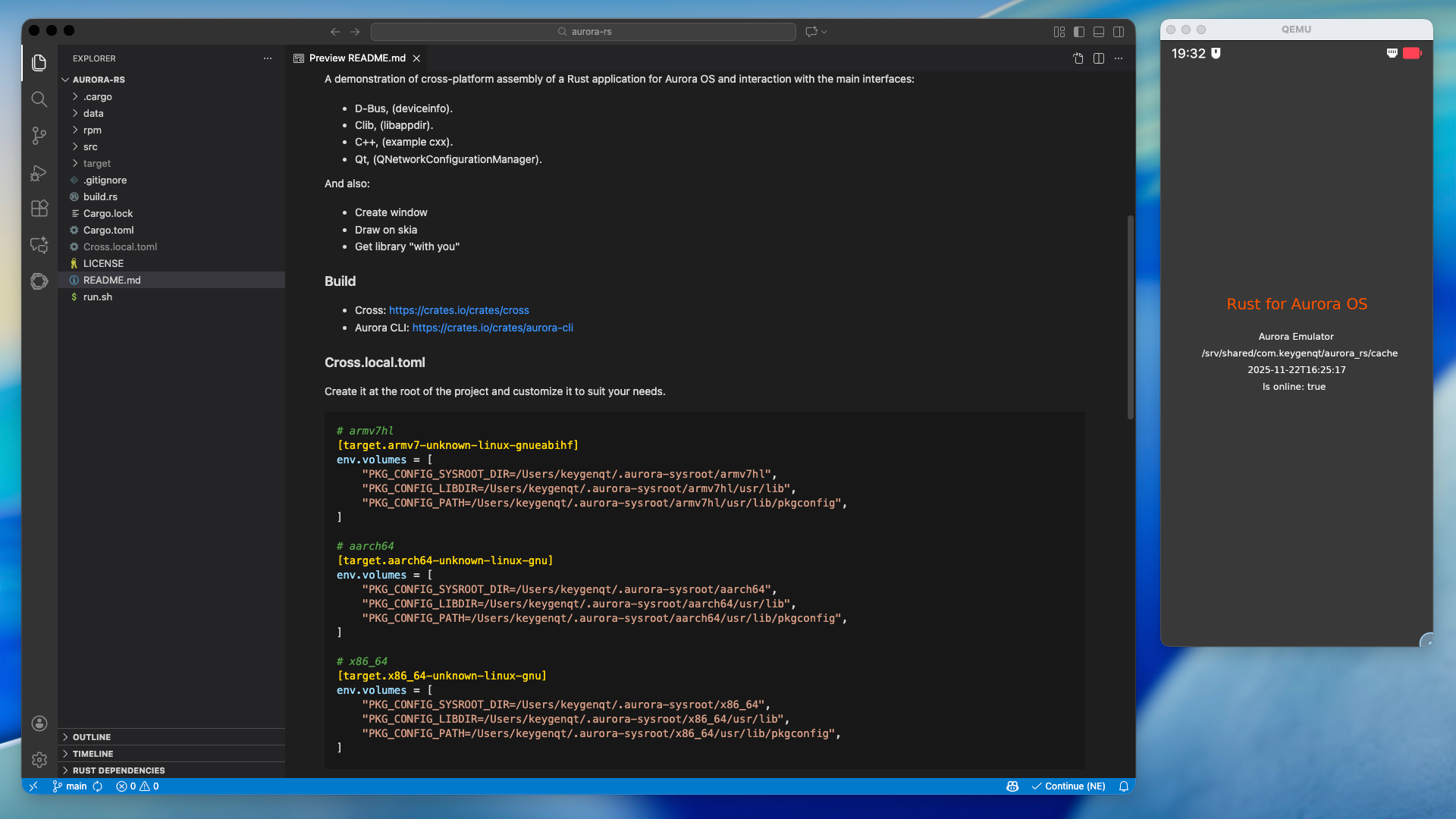
Now we are finished; we can build the project and get the following result:
Everything described is available for independent study in the Rust for Aurora OS project.